

Typography in Divi 5
Typography is more than just choosing a font; it encompasses the style, arrangement, and appearance of text. In Divi 5, typography has been revolutionized with new features that allow for greater customization and flexibility. Here’s what you need to know:
- First Impressions Matter: Typography can significantly influence how visitors perceive your website. A well-chosen font can convey professionalism, creativity, and brand identity.
- Readability and Accessibility: Good typography enhances readability, making it easier for users to consume content. This is especially important for mobile users.
- Aesthetic Appeal: Typography contributes to the overall aesthetic of your site, helping to create a cohesive design that aligns with your brand.
Key Features of Divi 5 Typography
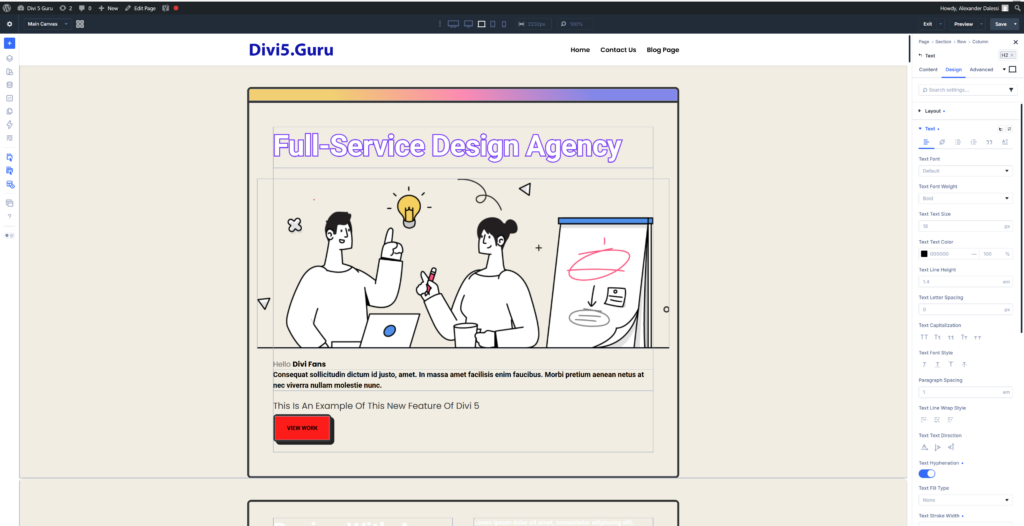
Divi 5 introduces several new typography features that empower designers to create stunning text layouts:
- Variable Fonts: These allow for dynamic adjustments to font weight, slant, and other properties, providing a more versatile design experience.
- Text Roundness: This feature enables you to adjust the curvature of text, adding a unique flair to your typography.
- Text Direction and Columns: Control the flow of text and create newspaper-style layouts with ease.
Exploring Variable Fonts
Variable fonts are a game-changer in web design, offering a single font file that can adapt to various styles and weights. Here’s how to make the most of this feature in Divi 5:
How Variable Fonts Work
Variable fonts consolidate multiple font styles into one file, reducing load times and improving performance. You can adjust:
- Font Weight: Change the thickness of the text dynamically.
- Font Slant: Create italicized text without needing a separate font file.
- Font Width: Adjust the width of the text for a more compact or expanded appearance.
Implementing Variable Fonts in Divi 5
- Select Your Font: In the Divi Builder, choose a variable font from the typography settings.
- Adjust Settings: Use the sliders to modify weight, slant, and width according to your design needs.
- Preview Changes: Always preview your changes to see how they affect the overall layout.
Mastering Text Roundness
Text roundness is a unique feature that allows you to add curvature to your text, creating a more playful and engaging design. Here’s how to utilize this feature effectively:
What is Text Roundness?
Text roundness refers to the curvature applied to the corners of the text characters. This can soften the appearance of your typography and make it more visually appealing. Before Divi 5 text roundness could be edited only with custom CSS.
How to Adjust Text Roundness in Divi 5
- Access Typography Settings: Navigate to the module settings where you want to apply text roundness.
- Locate the Roundness Option: Find the text roundness slider in the typography settings.
- Adjust the Slider: Move the slider to increase or decrease the roundness of the text. Preview the changes in real-time.
Best Practices for Using Text Roundness
- Consistency is Key: Use text roundness sparingly and consistently across your site to maintain a cohesive look.
- Pair with Other Styles: Combine rounded text with other typography styles for a balanced design.
- Test Across Devices: Ensure that your rounded text looks good on both desktop and mobile devices.
Utilizing Text Direction and Columns
Divi 5 also introduces new controls for text direction and columns, allowing for more complex layouts. Here’s how to leverage these features:
Text Direction Control
Text direction allows you to control how text flows within a module. You can choose between horizontal and vertical orientations, which can be particularly useful for creating unique layouts.
Creating Newspaper-Style Text Columns
- Add a Text Module: Start by adding a text module to your layout.
- Enable Columns: In the module settings, enable the text columns feature.
- Adjust Column Settings: Set the number of columns and adjust the spacing to create a newspaper-style layout.
Tips for Effective Column Layouts
- Balance Content: Ensure that each column has a balanced amount of content to avoid visual clutter.
- Use Headings Wisely: Incorporate headings to guide readers through the content in each column.
- Responsive Design: Test your column layouts on various screen sizes to ensure they remain user-friendly.
Enhancing Typography with Additional Features
In addition to variable fonts, text roundness, and column layouts, Divi 5 offers several other typography features that can enhance your design:
Text Shadows
Adding shadows to your text can create depth and make it stand out against the background. Here’s how to implement text shadows:
- Select the Text Module: Choose the text module you want to modify.
- Access Text Shadow Settings: Find the text shadow options in the typography settings.
- Adjust Shadow Properties: Modify the shadow color, blur, and position to achieve the desired effect.
Line Height and Letter Spacing
Adjusting line height and letter spacing can significantly impact readability. Here’s how to fine-tune these settings:
- Line Height: Increase line height for better readability, especially in longer paragraphs.
- Letter Spacing: Adjust letter spacing to create a more open or compact appearance, depending on your design goals.
Creating Modern Layouts Without Custom CSS
One of the most significant advantages of Divi 5 is the ability to create modern layouts without the need for custom CSS. Here’s how to take advantage of this feature:
Using the Visual Builder
The Visual Builder in Divi 5 allows you to see changes in real-time, making it easier to experiment with typography settings. Here’s how to use it effectively:
- Enable the Visual Builder: Open your page in the Visual Builder.
- Select a Module: Click on the module you want to edit.
- Experiment with Typography Settings: Adjust typography settings and see the changes immediately.
Save and Reuse Styles
Once you’ve created a typography style you love, save it as a preset for future use. This can save you time and ensure consistency across your site.