
Slow WordPress pages are one of the biggest barriers to strong performance, both for users and search engines. When load times climb, bounce rates follow—and rankings drop soon after. Optimizing your WordPress site for speed is one of the highest‑impact improvements you can make, and it starts with understanding what’s slowing you down.
Understanding the Importance of Website Speed
Website speed is not just a technical metric; it significantly influences user behavior and engagement. Research indicates that even a one-second delay in page load time can lead to a 7% reduction in conversions. Additionally, users expect pages to load quickly, with many abandoning sites that take longer than three seconds to load.
Key Statistics on Page Speed and User Behavior
- Bounce Rate: A 1-second delay can increase bounce rates by up to 32%.
- Conversion Rates: Faster sites can see conversion rates increase by up to 10%.
- User Expectations: 47% of users expect a web page to load in two seconds or less.
These statistics highlight the critical need for optimizing your WordPress site’s speed to retain visitors and improve your search engine rankings.
Identifying the Causes of Slow WordPress Pages
Before implementing solutions, it’s essential to identify the factors contributing to your site’s slow performance. Common culprits include:
1. Heavy Images and Media Files
Large image files can significantly slow down page load times. If your site features numerous high-resolution images, it’s crucial to optimize them for the web.
2. Inefficient Hosting
The quality of your hosting provider plays a vital role in your site’s speed. Shared hosting plans, while cost-effective, can lead to slower performance due to resource limitations.
3. Excessive Plugins
While plugins can enhance functionality, too many can bloat your site and slow it down. Each plugin adds additional code that needs to be loaded, which can impact performance.
4. Unoptimized Code
Bloated HTML, CSS, and JavaScript files can hinder your site’s speed. Over time, as you add content and features, your code can become inefficient.
5. Lack of Caching
Caching is a technique that stores a static version of your site, allowing it to load faster for returning visitors. Without proper caching, your server has to generate a new page for every request, which can slow down load times.
Effective Strategies to Speed Up Your WordPress Site
Now that you understand the common causes of slow WordPress pages, let’s explore actionable strategies to enhance your site’s speed.
1. Optimize Images
Images are often the largest files on a webpage. To optimize them:
- Compress Images: Use tools like TinyPNG or plugins like Smush to reduce file sizes without sacrificing quality.
- Use Appropriate Formats: Choose the right image format (JPEG for photos, PNG for graphics with transparency).
- Implement Lazy Loading: This technique loads images only when they are visible in the viewport, reducing initial load time.
2. Choose a Reliable Hosting Provider
Investing in a quality hosting provider can make a significant difference in your site’s performance. Consider:
- Managed WordPress Hosting: These services are optimized for WordPress and often include caching and security features.
- SSD Storage: Solid State Drives (SSD) are faster than traditional hard drives, improving load times.
3. Limit Plugins
While plugins can enhance functionality, too many can slow down your site. To manage plugins effectively:
- Deactivate Unused Plugins: Regularly review your plugins and deactivate those that are not in use.
- Choose Lightweight Alternatives: Opt for plugins that are known for their efficiency and minimal impact on performance.
4. Minify CSS, HTML, and JavaScript
Minification reduces the size of your code files by removing unnecessary characters, such as spaces and comments. You can use plugins like Autoptimize or WP Rocket to automate this process.
5. Implement Caching Solutions
Caching can significantly improve your site’s speed. Consider the following:
- Install a Caching Plugin: Plugins like W3 Total Cache or WP Super Cache can create static versions of your pages, reducing server load.
- Browser Caching: Set expiration dates for static resources to allow browsers to store them locally.
6. Use a Content Delivery Network (CDN)
A CDN distributes your site’s content across multiple servers worldwide, allowing users to access it from the nearest location. This reduces latency and improves load times. Popular CDN options include Cloudflare and StackPath.
7. Optimize Your Database
Over time, your WordPress database can accumulate unnecessary data, slowing down your site. Regularly clean up your database by:
- Removing Spam Comments: Delete any spam or unapproved comments.
- Cleaning Up Post Revisions: Limit the number of post revisions stored in your database.
8. Keep WordPress Updated
Regularly updating WordPress, themes, and plugins ensures that you benefit from performance improvements and security patches. Always back up your site before performing updates.
9. Use a Lightweight Theme
The theme you choose can impact your site’s speed. Opt for a lightweight theme that prioritizes performance. Avoid themes with excessive features that you may not use.
10. Disable Pingbacks and Trackbacks
Pingbacks and trackbacks can slow down your site by generating additional requests. Disable these features in your WordPress settings to improve performance.
11. Limit External Scripts
External scripts, such as ads and font loaders, can slow down your site. Limit their use and consider loading them asynchronously to reduce their impact on load times.
12. Monitor Your Site’s Performance
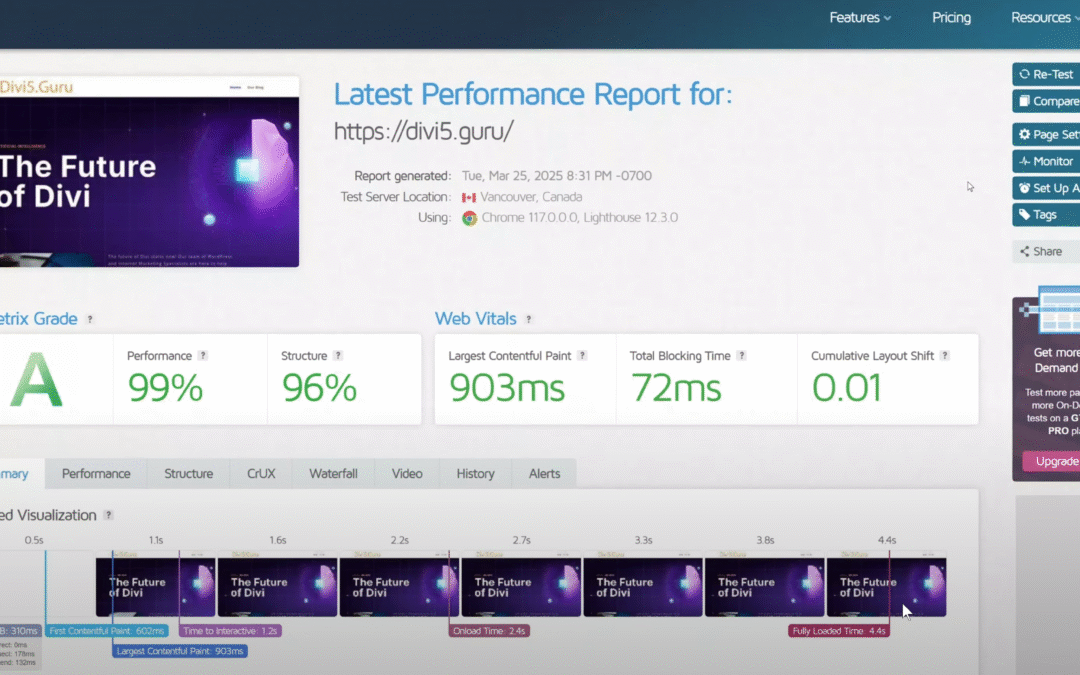
Regularly test your site’s speed using tools like Google PageSpeed Insights, GTmetrix, or Pingdom. These tools provide insights into your site’s performance and offer recommendations for improvement.